Create recurring tasks from a template
Prepare a reusable template for daily checks or weekly reviews, with a separate task and record for every occurrence.
On this page
When to use recurring tasks
Use a recurring task for work with a regular schedule and similar steps, such as daily checks or Friday reviews. TodoNote creates new tasks from your template according to the rule.
Every occurrence has its own note and completion state. An unfinished previous task does not prevent the next occurrence, and each occurrence keeps its own results.
1. Create a rule in Integrations
Open Integrations → Recurring tasks and choose New. Under Repeat, choose Every day, Weekdays, or Every week. For Every week, also choose one weekday; a weekly review could run on Friday.
The rule uses the app time zone at creation or save. Its initial value comes from your device if you haven’t configured it. The current editor asks for the frequency and, for weekly rules, the weekday.
2. Write the reusable template
Enter a title and note under Task template. For a review, keep prompts about completed work, unfinished work, and next week’s priorities; fill in the actual answers in each generated task.
Use the ‘/’ menu in the template note to create subtasks. Add a tag such as ‘Weekly review’ to find past occurrences together.
Generation copies the notes, subtask hierarchy, and each task’s tags. Completion states reset. Put reusable questions and checks in the template and occurrence-specific answers in the generated task.
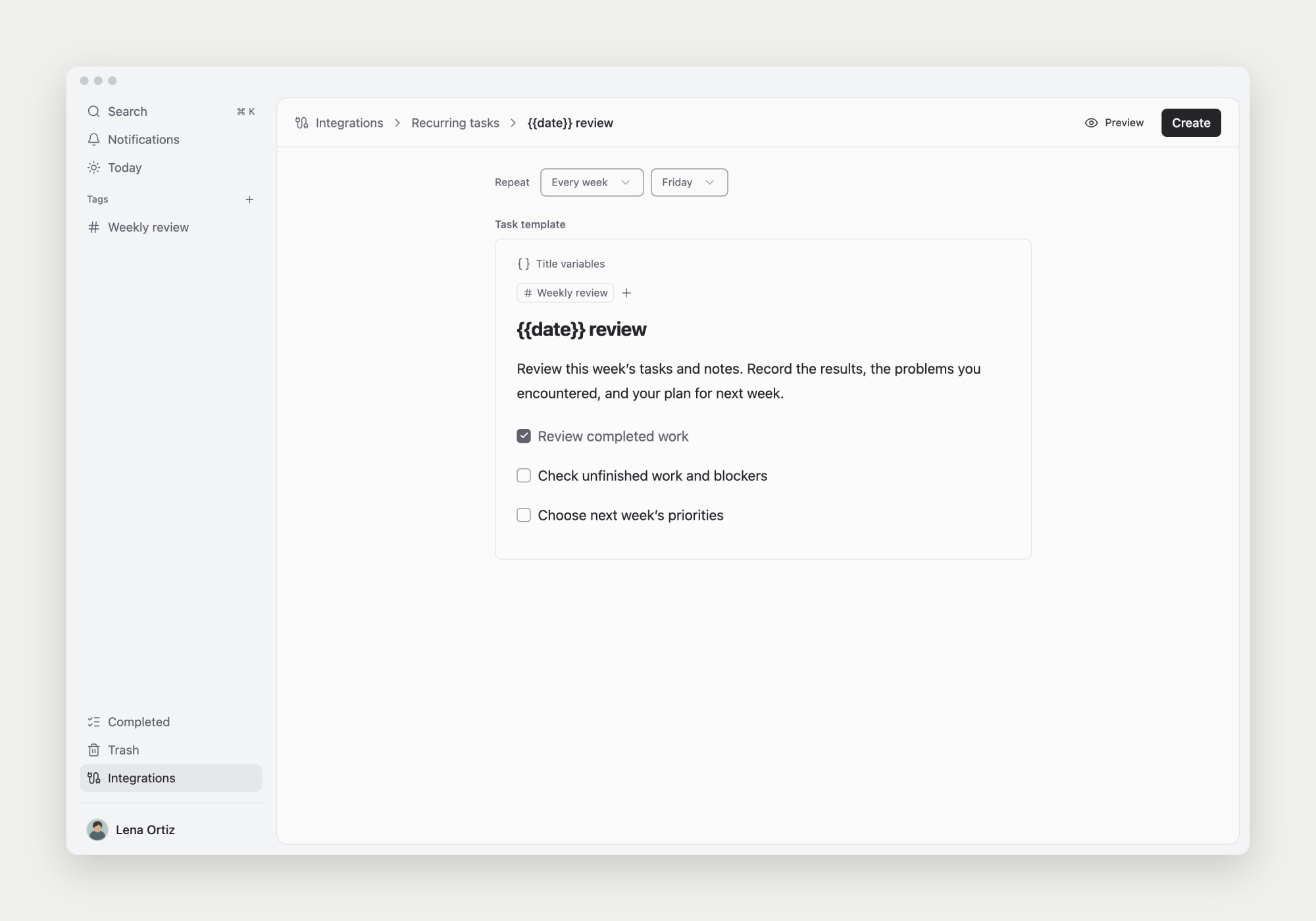
Use title variables to identify each occurrence
Choose Title variables to insert a date, weekday, year, week number, or week year. Variables resolve for the occurrence date in both parent and subtask titles.
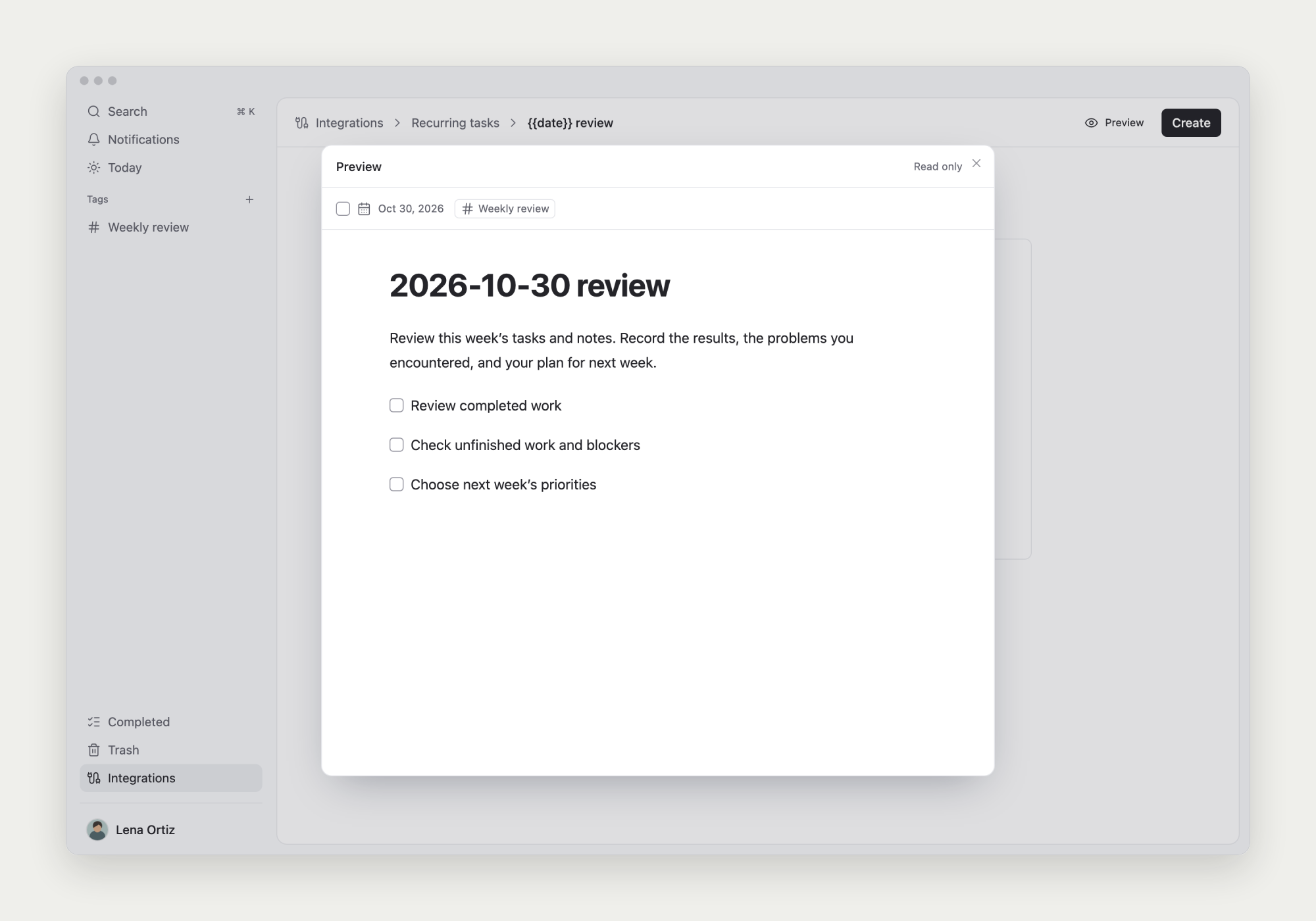
For example, ‘{{date}} review’ becomes ‘2026-10-30 review’. You can also use ‘{{weekYear}} week {{week}} review’.
{{date}} is the occurrence date, {{weekday}} the weekday, and {{year}} the calendar year. {{week}} and {{weekYear}} are the ISO week number and its year, which can differ from the calendar year near New Year.
3. Preview the result, then create the rule
Choose Preview to check the next task’s title, date, note, and subtasks. You can open subtasks within the preview to check their contents.
Preview is read-only and creates no real task. Close it to edit the template. Once ready, choose Create to enable the rule.
When tasks appear and how to use them
Enabled rules generate at 00:00 on eligible dates in the rule’s saved time zone. Creating or re-enabling a rule may also generate today’s task immediately if today qualifies and has not already been generated.
The parent task starts on the occurrence date and appears on the board. Generated subtasks have no start date; give them dates to track them in the corresponding lanes. Due dates and due reminders are not set automatically.
Fill in the generated task, complete its steps, then complete the parent. Editing or deleting an occurrence does not change the template or cancel future occurrences.
Edit a rule or template
Return to Integrations → Recurring tasks, open the rule, change the frequency or weekday, and choose Save. Notes in an existing template save through the editor’s normal synchronization.
Template changes affect future occurrences. Existing generated tasks keep their contents; adding a review question does not rewrite past weeks.
Pause, re-enable, or delete
Turn off the rule’s switch in the list to pause generation. Turn it on to resume; paused dates are not backfilled.
Use the rule’s delete button and confirm to remove the rule and its template. Generated tasks and notes remain.
Pause work you may resume later. If you only need to skip one occurrence, handle that generated task and keep the future schedule.