Start with your first task
Plan something you need to do, keep your thinking in the task, and save the useful record.
On this page
Every task is also a note
In TodoNote, a task has both a completion checkbox and an editable note. Use the title for the action and the note for materials, progress, and decisions.
Let’s start with a task called ‘Prepare Friday’s project meeting’ and follow it from planning to a reusable record.
1. Create a task and choose a start date
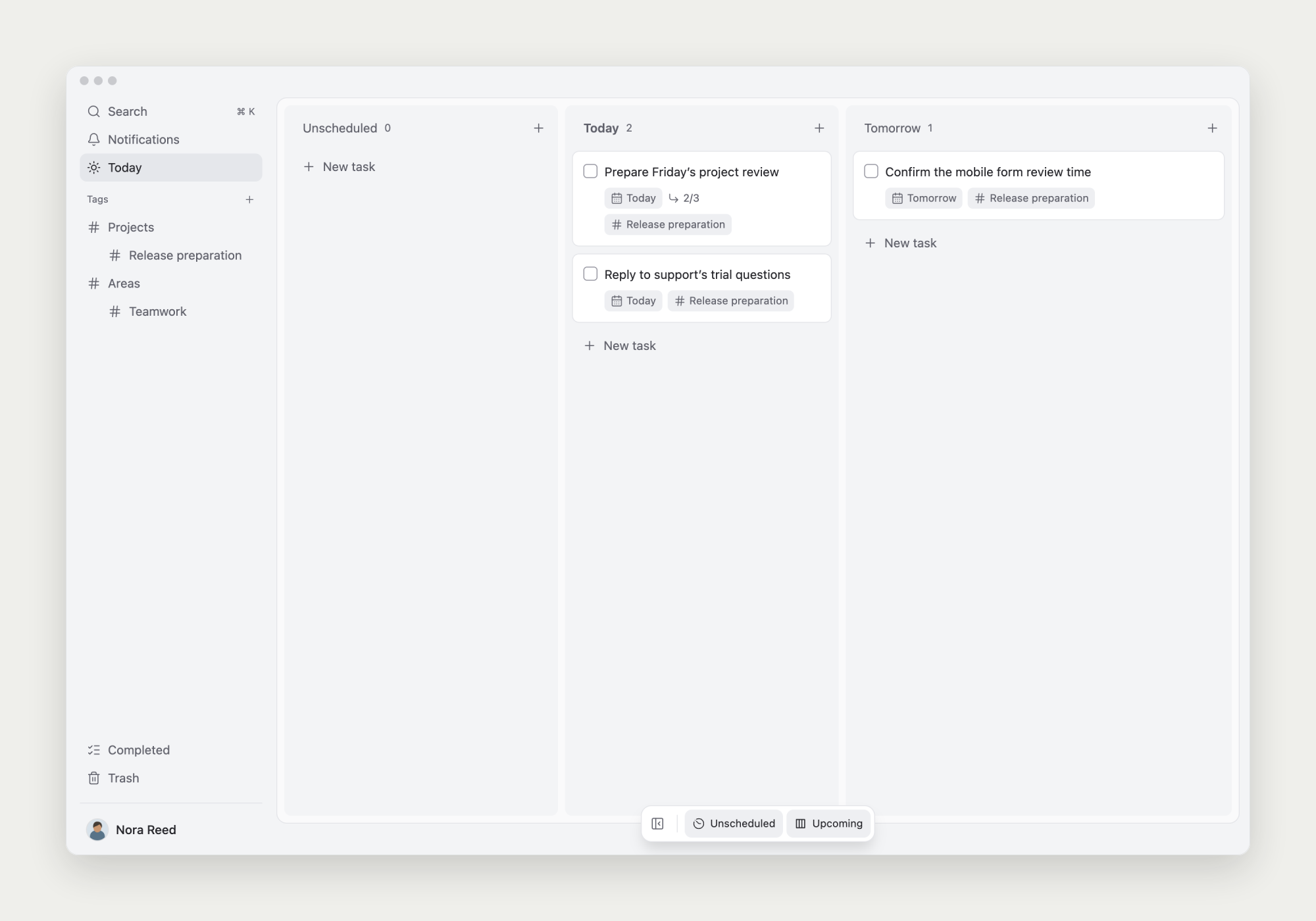
After signing in, choose New task in Today on the board. Enter ‘Prepare Friday’s project meeting’. You can also create it in Unscheduled and choose a start date later.
The start date is when you intend to work; the due date is the latest you need to finish. If the meeting is Friday and preparation starts Thursday, set Thursday as the start date. Add a due date when there is a firm deadline.
2. Open the task and write down the context
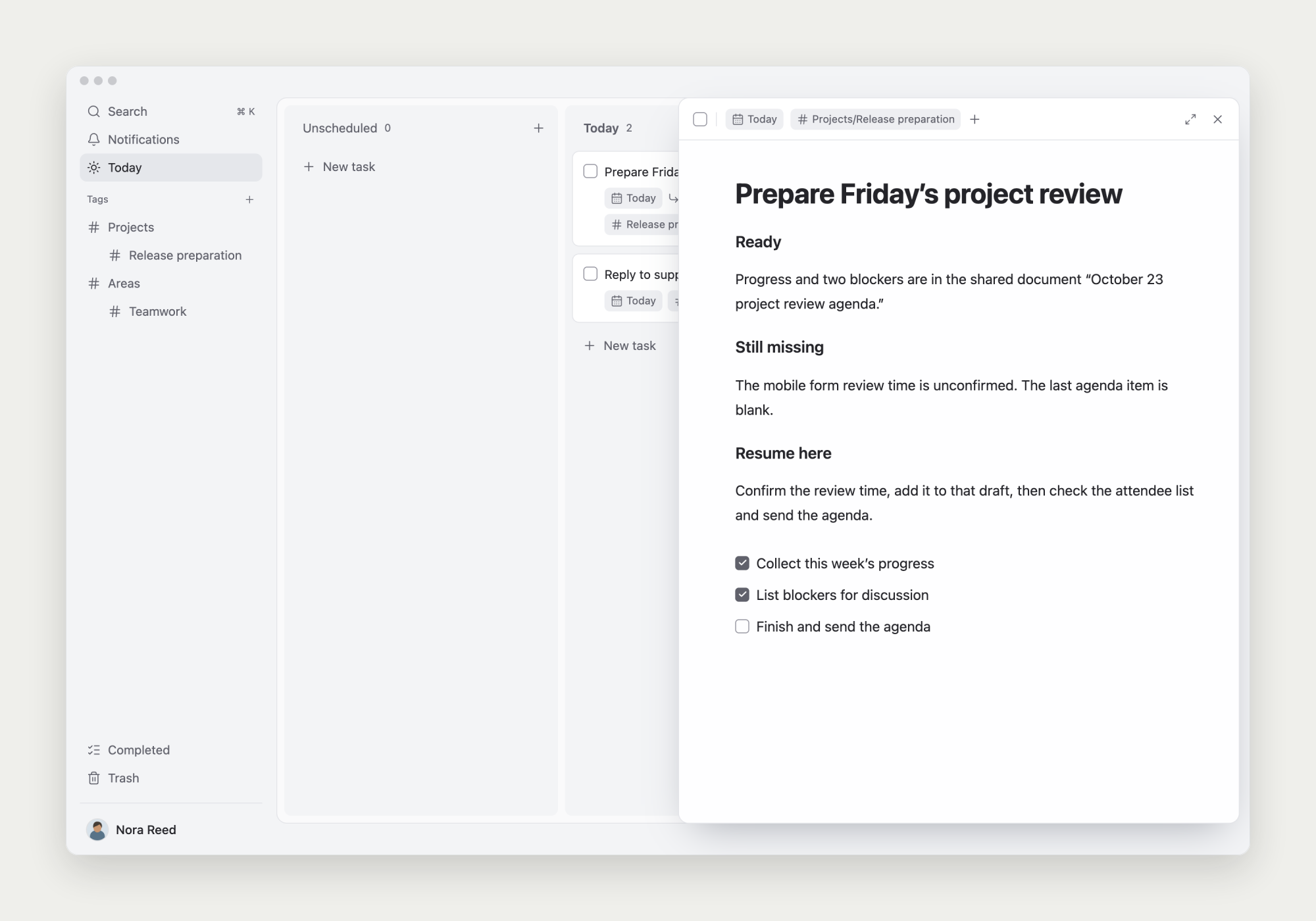
Click the task title to open its note. Write what the meeting needs to resolve, which materials you already have, and what still needs confirmation. Keep links beside the relevant details.
Before pausing, leave a concrete next step, such as ‘Confirm the mobile review time, then finish the agenda’. You’ll know where to resume.
3. Add subtasks for work you need to track separately
Type ‘/’ in the note and choose Task to create steps such as ‘Collect progress updates’, ‘List blockers’, and ‘Send the agenda’. Each subtask has its own note, dates, and completion state.
Once a subtask has a start date, it automatically appears alongside other tasks in the corresponding board lane. Completing it there also updates its state inside the parent task.
Keep simple material lists in the note. Create subtasks when you need to schedule or track the steps individually.
4. Complete the task and keep useful notes
Check the task when the work is done. It moves to Completed and keeps its note.
Add a tag such as ‘Project meetings’ if you’ll need the preparation record again. Reopen it through the tag or Completed to read or extend the original record.