Complete, restore, and delete tasks
Keep useful notes, reopen work when needed, and understand what deletion does.
On this page
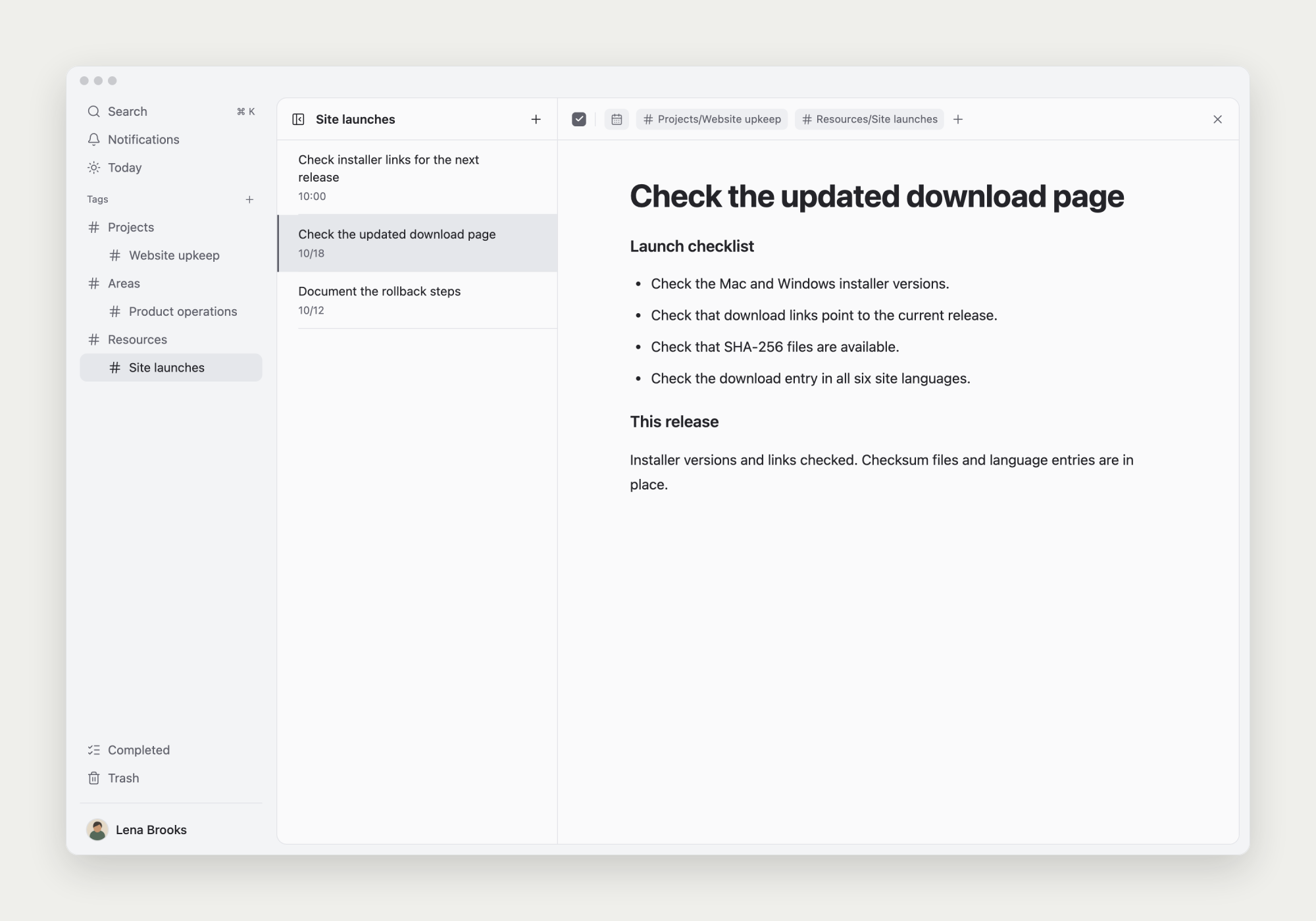
Completion keeps the note
Check the task to mark the work done. Open Completed in the sidebar to read its note and attachments later.
Keep topic tags on reusable records so you can revisit the process and decisions.
Reopen a task
Uncheck completion when the same work needs to continue, then adjust its start and due dates.
For a new execution of previously finished work, create a new task and refer to the old result so both records remain distinct.
Move unwanted tasks to Trash
Choose Move to Trash in the task menu. Open Trash in the sidebar and choose Restore to bring a task back.
Trash can be searched by title, path, or tag. Try the project or parent task name if needed.
Check the contents before permanent deletion
Permanently delete removes tasks you no longer need. First check that their notes and attachments are no longer required.
Completed and trashed tasks still count toward the Free limit. Only permanent deletion frees their item quota.