Write notes and add images or files
Keep materials, drafts, and progress inside the task they belong to.
On this page
Open a task and start writing
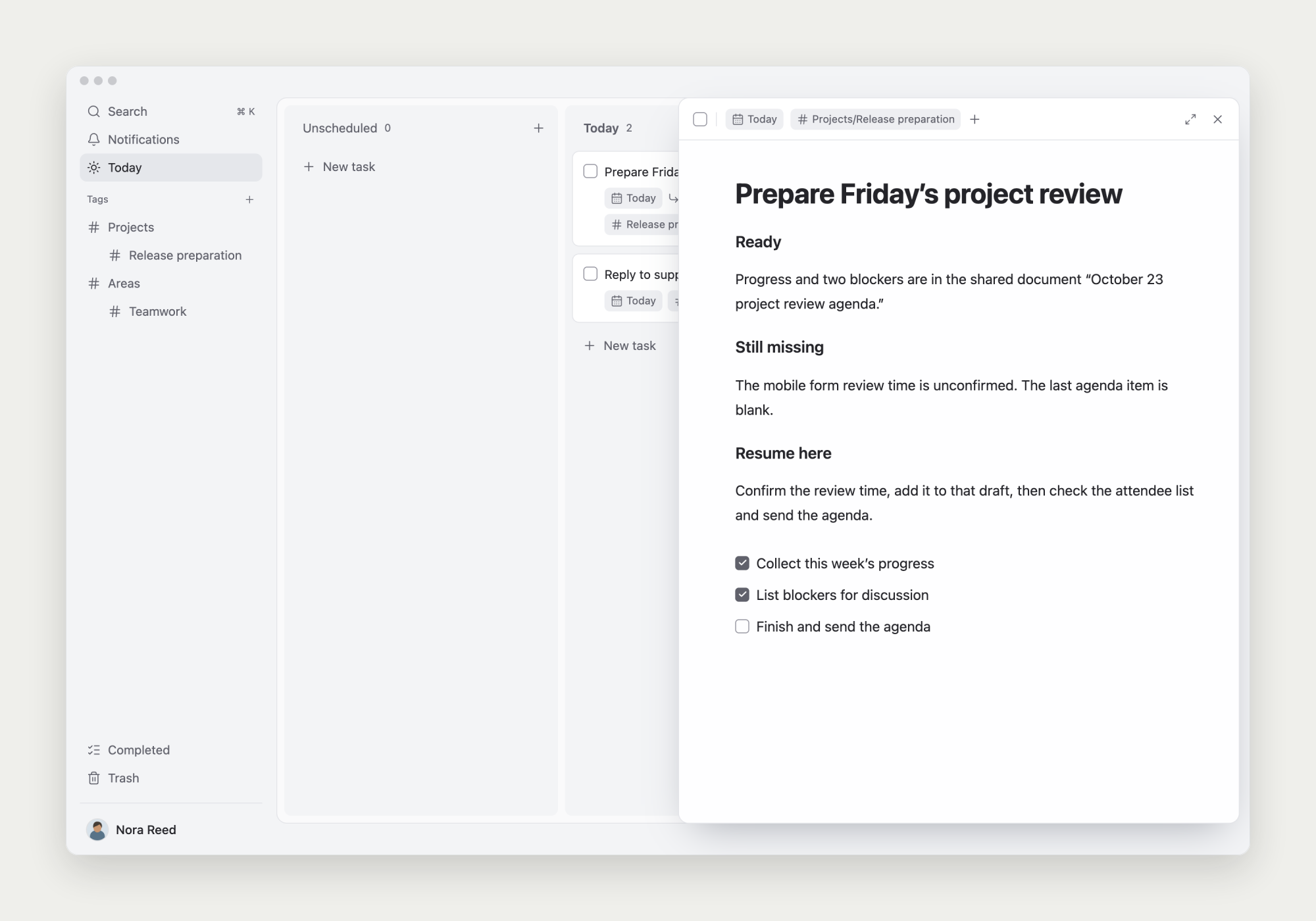
Click a task title and type in the note. The title describes the outcome; the body keeps context, sources, decisions, and next steps. Your edits stay with the task.
Before stopping, write where you got to and what to do first when you return.
Choose content types with ‘/’
Type ‘/’ to insert headings, lists, quotes, code blocks, tables, images, files, or tasks. Select text to apply formatting or add a link.
For materials stored elsewhere, keep the original link and explain how it relates to the current work.
Insert an image or file
Choose Image or File in the ‘/’ menu and upload the material. Use images for screenshots or comparisons, and files for downloadable attachments.
Wait for uploads to finish before leaving. Open images to preview them and add captions that explain what they show.
Turn actionable steps into subtasks
When a step needs its own date or completion tracking, create a task from the ‘/’ menu.
Keep context in the parent note and move specific actions forward in subtasks. Notes and attachments remain after completion.