To manage recurring work, put the repeatable steps in a template and write each run’s findings in its own task. In TodoNote, a recurring rule creates a new task on the scheduled date, with a fresh completion state and a copy of the template note and subtasks. Last week’s results stay in last week’s task.
This matters when a check is more than a reminder. A task called ‘check the website’ can tell you to start, but it cannot tell you what passed last Friday, what failed this Friday, or which repair is still waiting. A useful recurring workflow preserves those distinctions.
Choose work with a stable rhythm and repeatable steps
Website inspections, daily opening checks, and weekly content reviews are good candidates when the timing and the basic procedure are predictable. A one-off redesign or a request that arrives irregularly is better handled as an ordinary task.
Start with one routine. Nina’s Friday website check covers navigation links, download entry points, and help articles touched that week. The deliverable is a checked site and a short findings note; fixing every issue is a different scope.
Put instructions in the template and answers in the occurrence
The template should explain what to inspect and what counts as checked. Use subtasks for the steps that need their own completion state. Keep prompts for evidence and exceptions in the note, leaving the answers blank.
For Nina, the steps are ‘check navigation links’, ‘check download entry points’, and ‘check changed help articles’. A link is checked by opening its intended destination, not merely by seeing that the button exists. An issue needs a page, a symptom, and a next action.
Scope this time:

Checks:
- Navigation links reach the intended pages
- Download entry points reach the correct platform page
- Changed help articles match the current workflow

Findings and evidence:
Exceptions and follow-up:
One improvement for the template:Do not put ‘all links passed’ or a repair from a particular week into the reusable template. Those are results. Copying them forward would make the next occurrence look partly completed before anyone has checked it.
Set the schedule and inspect the template before enabling it
In TodoNote, open Integrations → Recurring tasks and create a rule. Select Weekly and Friday. Name the task ‘{{date}} Website check’, add the checklist and the ‘Website checks’ tag, then use Preview to inspect the generated title, note, and subtasks before creating the rule.
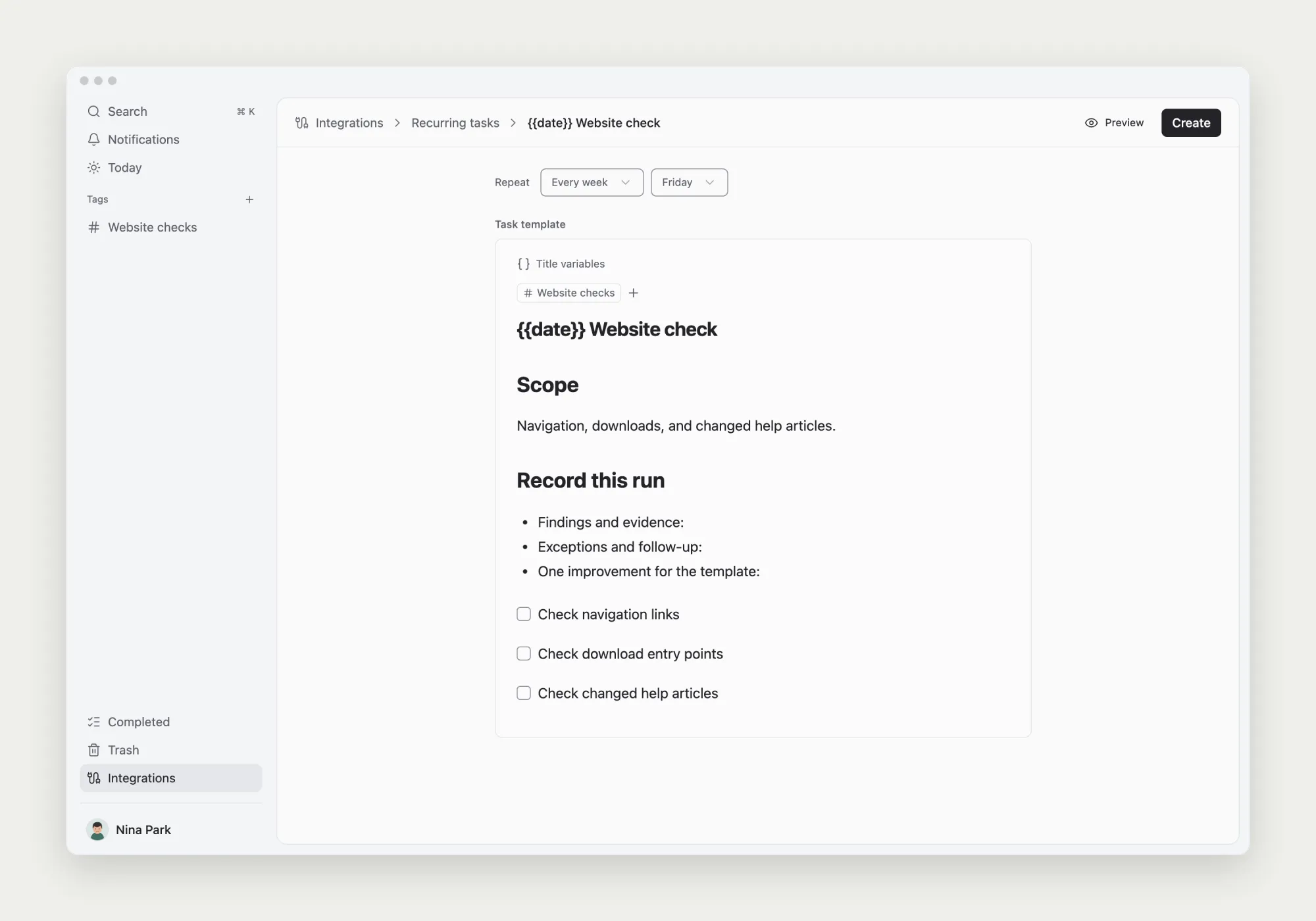
The available frequencies are daily, weekdays, and weekly with one selected weekday. Weekdays means Monday through Friday; it does not account for public holidays or replacement working days. Title variables such as {{date}} expand in task titles, including subtask titles, but not inside the note body.
Rules use their saved time zone and create tasks at the start of a matching day. The main task receives that day as its start date; due dates and reminders need to be added when needed. The recurring tasks guide covers setup, previews, and schedule behavior in detail.
Complete the inspection, then track the repair
In the October 30 example, Nina checks all three areas. Navigation and help content pass, but a help article’s download link leads to an outdated page. She records the affected page and the intended destination in that occurrence, then creates ‘Repair help article download link’ for November 2.
The inspection can be complete because its agreed outcome was to check and record findings. The repair remains open until the link is changed and tested. If a required check could not be performed, leave that step open and explain what prevented it; discovering a defect and failing to inspect an area are different situations.
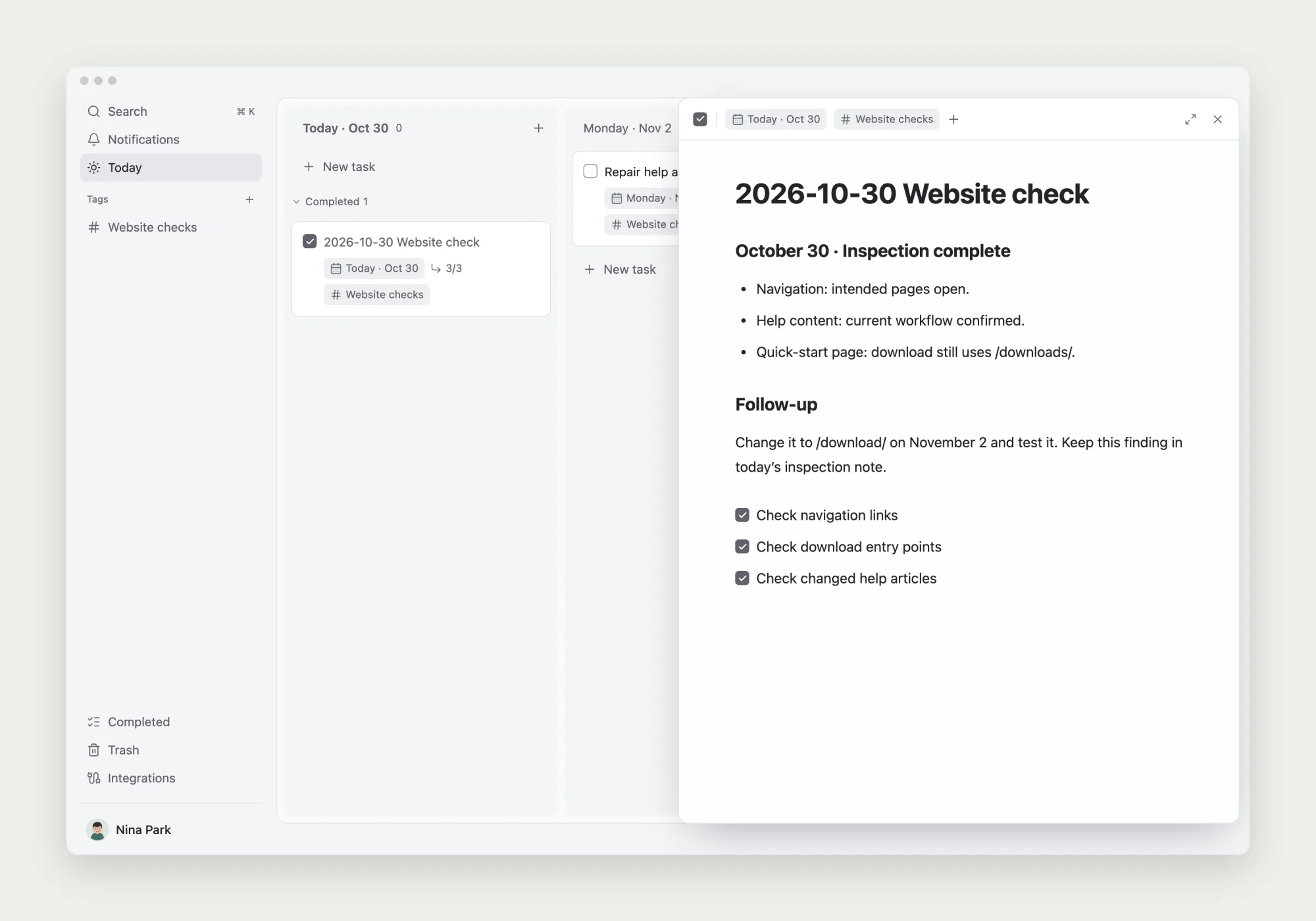
Give the separate repair the same tag manually and include the inspection date in its note. That keeps the action connected to its evidence without leaving the recurring inspection open indefinitely.
Return to the records when a problem repeats
Open ‘Website checks’ to find both completed inspections and open follow-up tasks. Comparing October 23 with October 30 lets Nina check whether the download problem was already present and whether the earlier note covered the same page. Dates belong in the titles so individual runs are easy to distinguish.
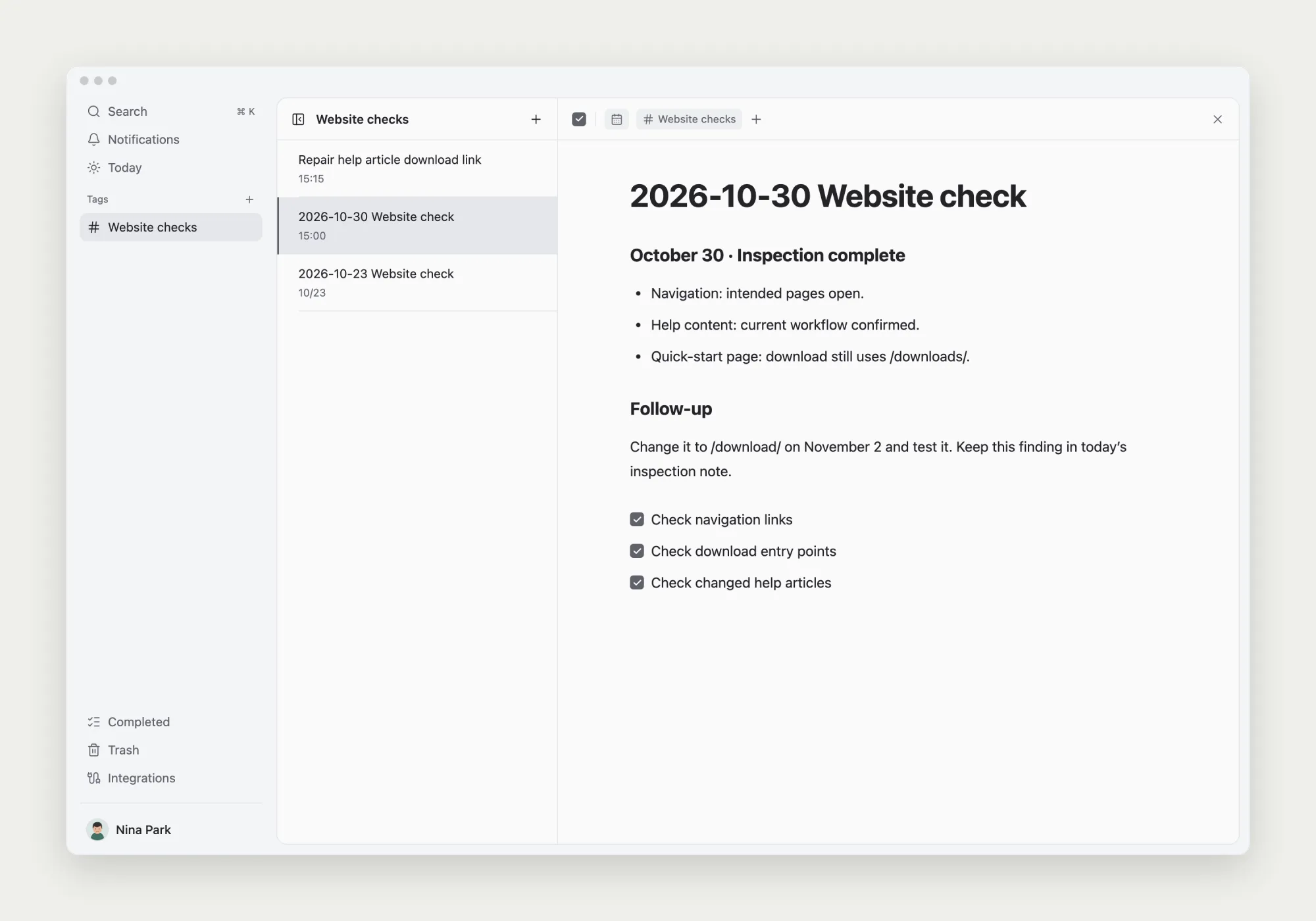
A new occurrence is generated even if the previous one remains unfinished. Review outstanding runs separately instead of treating the next task as a reset of yesterday’s work. Paused or missed dates are not backfilled, and deleting today’s generated task does not cause another one to appear automatically.
Improve future runs without rewriting the past
If the same omission keeps appearing, change the template. Nina can make ‘check download entry points’ more precise by adding ‘also check links inside changed help articles’. The change applies to future generated tasks; previous notes remain as they were.
Edit a particular occurrence for a one-time exception. Edit the recurring template when the usual procedure changes. Pause the rule when the routine is temporarily unnecessary, then review whether it still deserves a place in the schedule before enabling it again.
Start with the next routine you would otherwise copy by hand. Write the fixed steps once, keep the actual results in each occurrence, and turn findings into actions with their own completion criteria. For a different recurring use case, see the weekly review template; for reusing past records, read what to keep after a task is complete.