If your to-dos mostly come from Gmail or Google Calendar, Google Tasks may already fit your routine. If you regularly reopen finished work to find decisions, files, and notes, test that workflow in TodoNote. Both tools have task details and subtasks. The useful comparison is how you maintain the context as the work changes.
Pick a task that will change before it is done
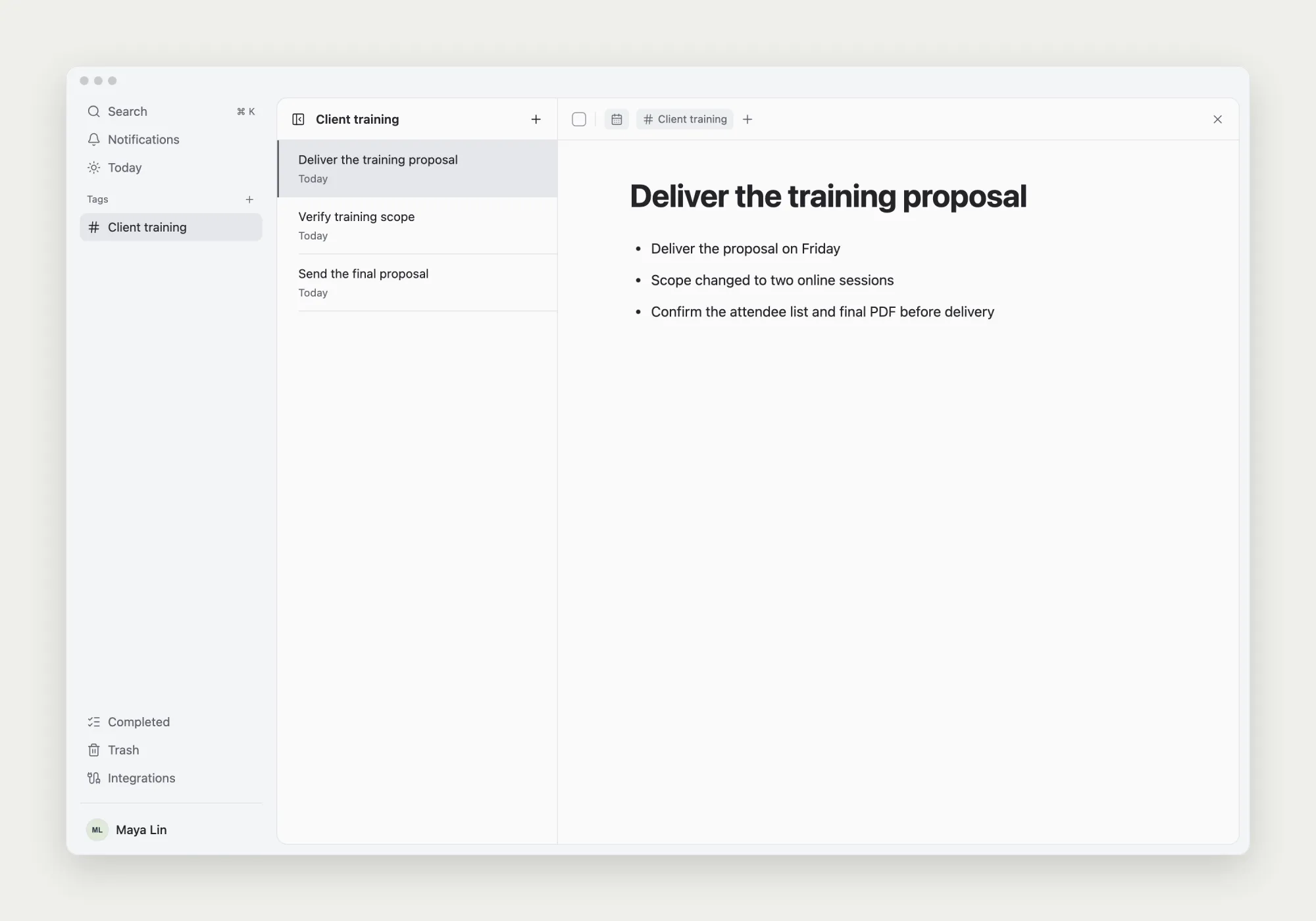
Create “Deliver the training proposal” in both tools. Set Friday as the deadline, and add subtasks to verify the training scope and send the final proposal. Then imagine the client asks for two online sessions. Record the new scope against the same task.
In Google Tasks, add a brief note and a link to the shared document. If the task came from Gmail or Calendar, check how easily you can get from the task to the original message or the working document.
Keep the reason for a change beside the deliverable
In TodoNote, open the parent task's note and record the original scope, the client's change, and what still needs confirmation. Add the final proposal link to the note and keep confirmation of the attendee list as a subtask.
Once the PDF is ready and the client has confirmed the list, complete the main task. Add a Client training tag during the trial so you can find the record later by topic as well as by title.
Reopen the finished work before you choose
A week later, find the finished task and answer one question from the record: why are there two sessions? See whether you can also locate the final PDF and the step that confirmed the attendee list.
If you rarely need that history and already keep the working materials in Google Docs, the familiar Google Tasks entry points may be worth keeping. If recovering past decisions is part of your work, choose the setup that made the answer easiest to find.
Google Tasks Help on adding and editing tasks
TodoNote guide to notes and attachments
A one-task trial before you switch
Deliverable:
Deadline:
Context worth saving:
Two subtasks:
Where the final materials live:
How to find the record after completion:
Where you had to leave the task to find information:Related workflow · Task and notes apps: compare five real work scenarios before you choose