Choose Bear if you want text-focused Markdown notes organized with tags. Choose OneNote if you prefer notebooks, sections, and a flexible page that can hold different kinds of material together. For work notes, the deciding test is whether you can capture a meeting, retrieve a project’s evidence, and resume a draft on the devices you actually use.
A longer feature list rarely tells you which app will make tomorrow’s work easier. Put the same small piece of work into each candidate, then compare the steps needed to find and use it again. You do not need to migrate your archive to answer that question.
Start with your devices and the shape of a note
Bear has native apps for Mac, iPhone, and iPad, with Markdown as a central writing format. Bear Web provides browser access alongside those apps; check its current access conditions and feature differences if a Windows or browser workflow is important. Do not treat browser access as a native Windows app.
OneNote is available in several versions across desktop, mobile, and web. Check the version and account you will actually use, especially on a work device. Microsoft’s OneNote overview describes its flexible canvas and shared notebooks. The fit depends on how you arrange information and whether other people need to edit it with you.
| Need | Bear | OneNote |
|---|---|---|
| Text-first writing | Markdown-centered note | Text on a flexible page |
| Organizing project material | Multiple tags on a note | Notebooks, sections, pages |
| Meeting follow-through | Checkboxes and the Todo section | Record actions alongside meeting content |
| Shared reference | Check the sharing method for the output | Consider a shared notebook |
| Device fit | Native Apple apps; check Bear Web | Check the relevant desktop, mobile, or web version |
Scenario 1: record a meeting and find the next action
Use a website launch review: a navigation screenshot, two decisions, and an open question about the signup link. In Bear, try one meeting note tagged for the project and meeting type. In OneNote, try a dated page in the project’s meetings section. Keep the content identical so you compare the organization rather than the writing.
Bear’s Todo section finds notes containing unfinished checkboxes. In either app, record what must happen next and who will handle it. Then test whether you can find the unresolved question without rereading every meeting note. A checkbox is useful, but it is not by itself an agreed delivery date.
Scenario 2: retrieve evidence across several sources
Add a user comment, a reference link, and a screenshot about the signup page. Bear’s tags allow the same note to appear under several topics. OneNote’s notebooks, sections, and pages offer a visible hierarchy; links can connect related pages. Neither structure removes the need for clear titles and a recorded source.
Ask a specific retrieval question: “Which feedback explains why the signup link moved?” Try to reach the original source and the decision from a fresh start. Prefer the structure that gets you there reliably without adding categories you will not maintain.
Scenario 3: resume a draft and deliver it elsewhere
Create a short launch memo with an outline, two references, and a paragraph still to revise. Bear is worth testing when you like writing in Markdown and using tags to group drafts. OneNote is worth testing when you want reference material and writing arranged on a flexible page or within a project notebook.
Also test the handoff. Bear’s export documentation lists Markdown among its available export formats. For OneNote, check the export or sharing options in your specific version. Open the delivered output and inspect links, images, and formatting rather than assuming that a successful export preserves everything you need.
A small comparison trial you can copy
Work sample / intended result:
Devices / app versions / account type:

Meeting note:
- Decisions / open question / next action:
Project evidence:
- Source / topic / retrieval question:
Draft:
- Current section / next edit / delivery format:

Bear: capture / retrieve / resume / deliver:
OneNote: capture / retrieve / resume / deliver:
Missing feature or extra step that matters:
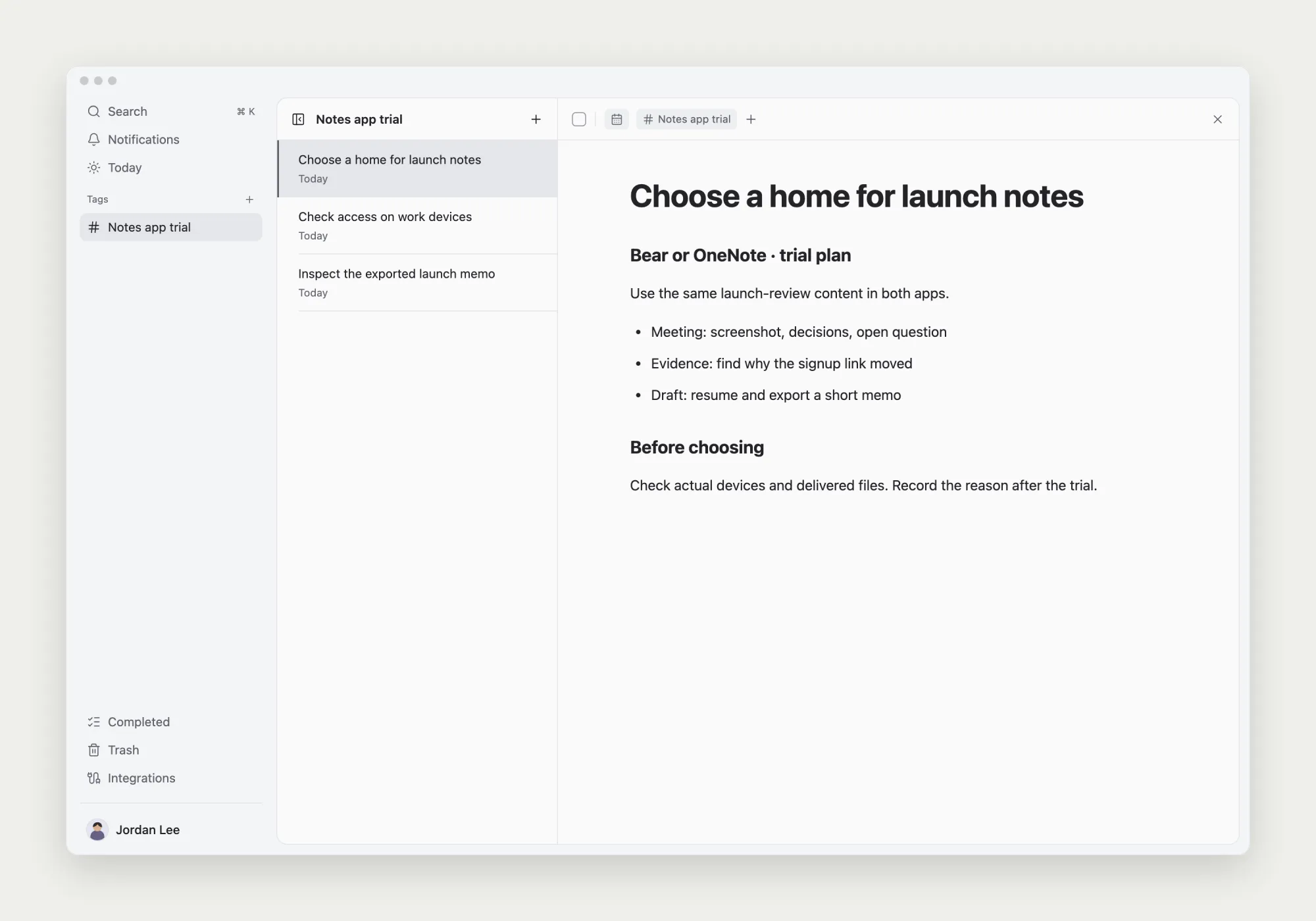
Choice / reason / next check:Jordan Lee coordinates the launch memo and keeps the trial checklist in TodoNote. The project tag collects the evaluation, the device check, and the export check. The illustration shows the comparison plan; the choice remains open until those checks are done.
Choose from the work you repeat
Lean toward Bear when focused text writing, Markdown handoff, and flexible tags match the work you repeat. Lean toward OneNote when a notebook hierarchy, a flexible canvas, and shared notebooks solve your main needs. Check sync, storage, paid features, and workplace access against your actual account before committing; a headline price alone is not the full cost.
Keep one finished sample and record what made the difference. If dated actions and resumable task notes are the remaining gap, read how to write a useful task note or the separate TodoNote vs Bear comparison. You can keep an existing note library and try one active task in TodoNote before changing anything larger.
Product details were checked against the linked official documentation on November 8, 2026. Recheck your version’s options when running the trial.