On Windows, open iCloud Reminders in your browser and sign in with the Apple Account you use for iCloud Reminders. If you only need to check, add, or complete reminders on the PC, start there.
Check that the list is in iCloud
On your Apple device, check that Reminders is enabled in iCloud settings and that the list lives under iCloud. A list from another account may be visible on the Apple device but absent from iCloud.com.
Before you change anything, create one test reminder in the browser and confirm it appears on your Apple device. You can also check whether the web workflow covers the time-based or shared-list features you rely on.
Choose based on what you need at the PC
| Need | Start with | Test first |
|---|---|---|
| Check the same errands list on Windows | iCloud Reminders in a browser | Add and check off a test item |
| Keep work steps and references together | TodoNote web or desktop app | Open the same task on both computers |
| Keep using Apple-specific reminders | Keep those lists in Apple Reminders | Check the exact notifications you use |
TodoNote offers a browser version, a Windows x64 desktop app, and an Apple Silicon Mac app. Use the same TodoNote account on both machines to access your work tasks and their notes.
Try one active task before moving lists
Create “Revise the homepage” and keep the approved copy and review instructions in its note. Schedule checking the copy today and sending the preview tomorrow as separate subtasks when they need different dates.
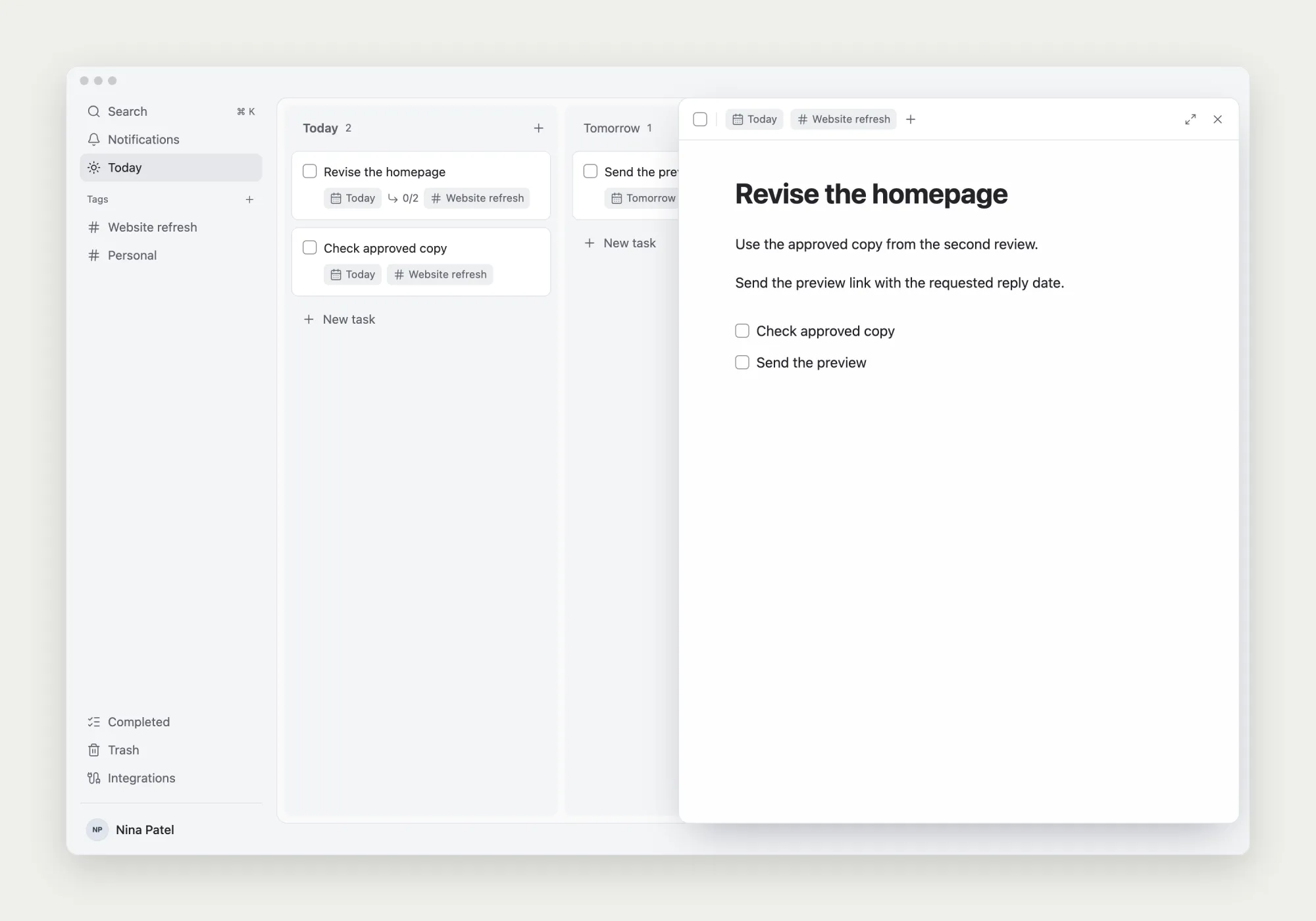
Sign in on the second computer. Check that opening the revision brings up the same note and that the two steps are in the planned places on the board.
Move ongoing work in small batches
Copy only the work items you still need, along with their current due dates and source links. Check recurring or shared reminders one by one before deciding how to keep them.
Apple’s guide to iCloud Reminders · TodoNote downloads and system requirements
Using Apple Notes checklists with Reminders · A migration checklist for task managers