Move a recurring meeting in Google Calendar at the scope you intend. During TodoNote’s next successful sync, an updated occurrence can update its imported task’s dates, and a confirmed cancellation can send the linked task to Trash. TodoNote keeps its own completion state when an existing event is updated.
Move just one occurrence first
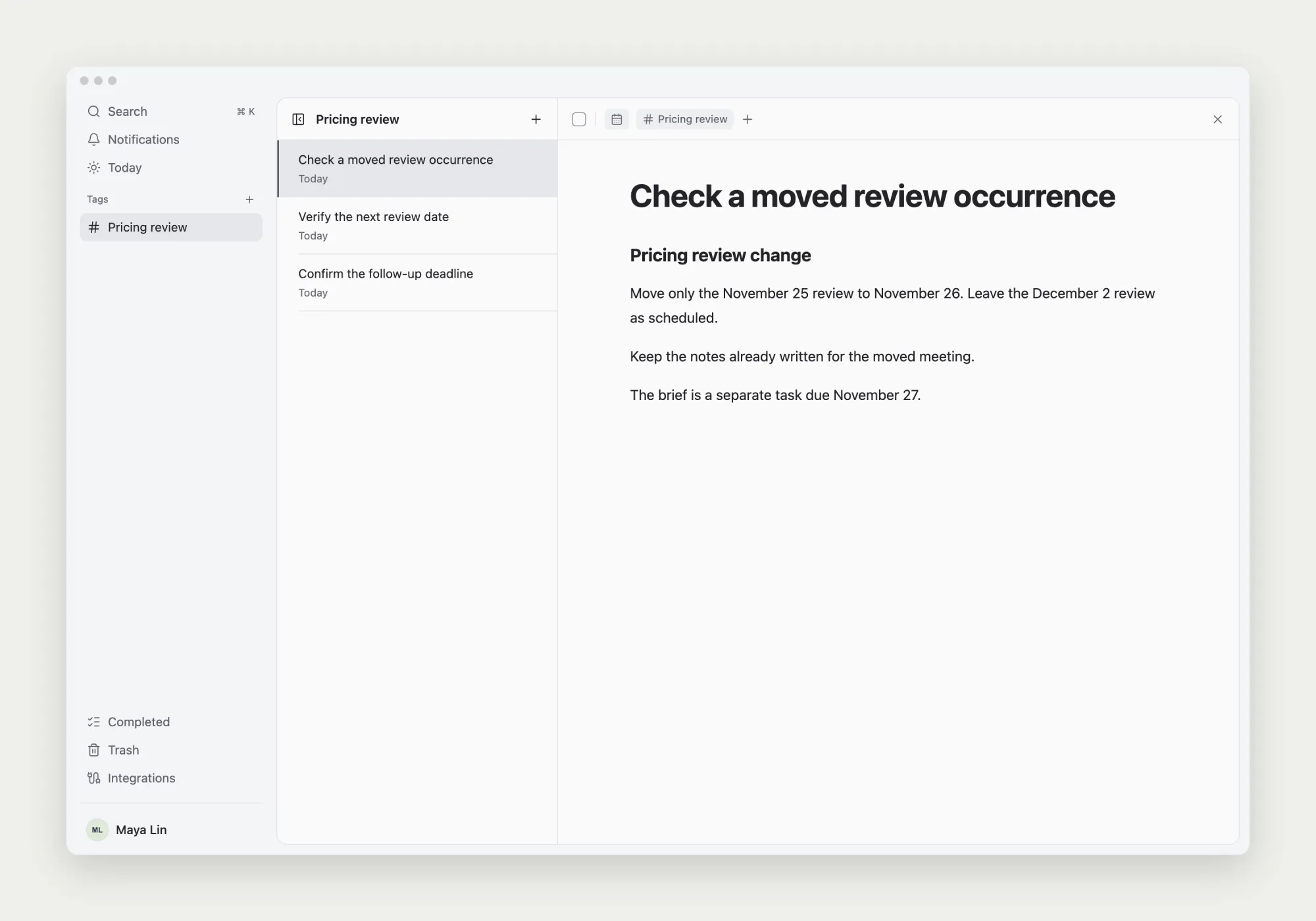
Put a weekly pricing review on two successive Wednesdays, November 25 and December 2. Once both are imported, edit the first occurrence in Google Calendar and choose the option for that event only. For example, move it to Thursday, November 26. The December 2 meeting is a separate occurrence and should retain its date.
After sync, open the moved task and check its new time and note. If you previously edited the task title or note in TodoNote, the fields you edited are retained independently. The event still supplies the scheduled dates and times.
Compare cancellation and a series edit
Cancel only the November 26 occurrence in Google Calendar, then sync again. Confirm the linked task’s location in TodoNote and check that the December 2 task is still active. A failed calendar read is different from a confirmed cancellation, so check the sync result before drawing a conclusion.
For a series test, change the series time in Google Calendar and compare the next two visible dates. If Google represents the change with new occurrence IDs, TodoNote may import new linked tasks. Check the old and new entries before assuming a note moved with the meeting.
| Change in Google Calendar | What to check in TodoNote |
|---|---|
| Move one occurrence | Dates and times on its linked task, plus the unchanged sibling occurrence |
| Cancel one occurrence | Linked task in Trash and the remaining occurrence still scheduled |
| Edit the series | Future imported dates and whether linked task identities changed |
Keep deliverables on their own dates
In the example, the brief is due November 27. Keep it as a separate task with its own deadline. After the meeting moves, open the brief and reassess its date if the new timing affects delivery.
The date and cancellation rules above follow the calendar integration’s automated checks and Google’s occurrence model. To repeat the exercise, use a test calendar with both occurrences inside the documented import window, save your note, and use Sync now after each change.
Google Calendar documentation on recurring events · TodoNote calendar subscription guide
Copyable recurring-event sync check
Calendar and series name:
Original dates and time zone:
Change scope and expected result:
Last successful sync:
Dates, note and completion after sync:
Independent follow-up deadline:To set up the work around each meeting, see Turn calendar meetings into follow-up tasks.