Keep your Excel tracker when you mostly need an overview, sorting, or calculations. Try a task app when a row has become the starting point for work that needs its own notes, scheduled steps, and source files. Three different rows are enough for a first comparison.
Sofia tracks campaign work in Excel. The overview still helps her report progress. The friction starts when a row says “Awaiting approval” and she has to leave the workbook to find what was sent and when to follow up.
Separate reporting fields from working details
Keep formulas and portfolio totals in the workbook. For a row you’re actively working on, use its title as the task name and turn lengthy comments into a note. Preserve the original link to any source still being edited.
Map the date by meaning. If “Friday” is the delivery commitment, keep it as the deadline and choose a separate day to start work. If it means “next check,” schedule a follow-up task for Friday.
Move only three rows by hand
| Spreadsheet row | Map it to | Check after moving |
|---|---|---|
| Draft campaign page · Planned | Task with work date and brief link | Can you start directly from the board? |
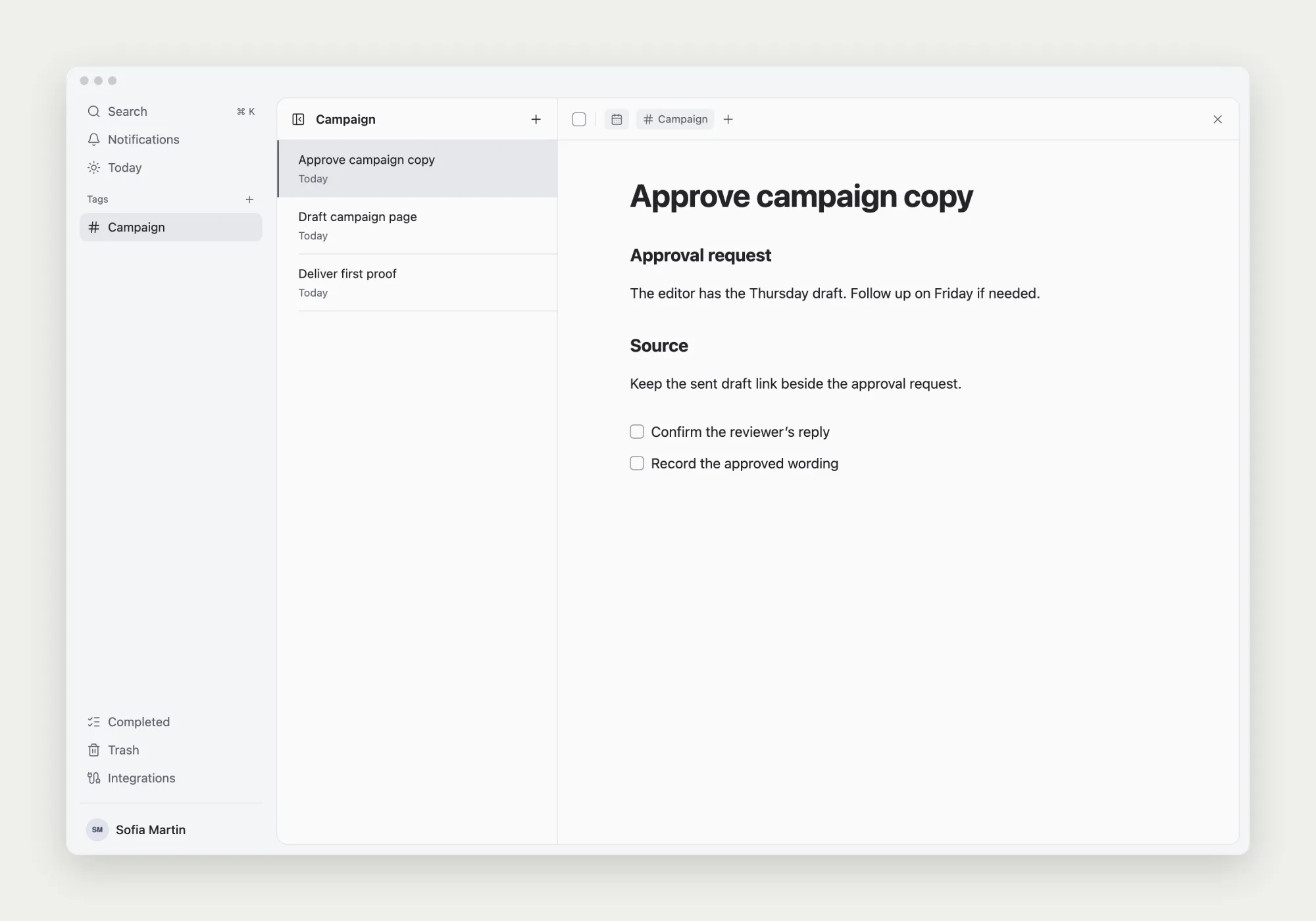
| Approve campaign copy · Waiting | Task note with approval request and a dated follow-up | Can you tell who needs to reply and when you’ll check? |
| Deliver first proof · Done | Completed task with version and sent date | Can you reopen the exact proof? |
Keep the same owner and status definitions during the trial so you can compare the work itself. If someone still needs the spreadsheet for reporting, agree on when to update that summary.
Run the test on the next workday
Create the three tasks in TodoNote and assign each a date only when there is work to plan or a commitment to keep. In the approval task, write down what was sent and create a dated follow-up. Mark the delivered proof complete after recording its version.
Leave the spreadsheet as your reference during the test. The next day, find the planned task, follow up on the waiting task, then reopen the finished one. Keep the setup that makes these three actions easier in your real workflow.
Choose one row from each state. Bring the details that let you resume the work or verify the outcome. This small sample can tell you more than a copy of every row.
Test a move to a new task manager with ten tasks
References · Microsoft Excel · Project planning templates · Start with your first task